iPhone & iOS · 6 min read · Updated on 2026-11-17
How to open an M3U playlist on iPhone without installing an app
On iPhone and iPad you do not need heavy App Store downloads to open a personal M3U or M3U8 playlist. Apple Safari natively supports HTTP Live Streaming (HLS) and works cleanly with ZavoxPlayer in the browser or added to your Home Screen.
Why iPhone Safari opens M3U and M3U8 playlists natively without App Store downloads
For years, iPhone and iPad owners were told they had to download ad-heavy utility apps from the App Store, deal with sudden regional removals, or sideload unverified profiles just to open a personal M3U or M3U8 media playlist. What many users overlook is that Apple invented HTTP Live Streaming (HLS) — the exact protocol behind .m3u8 playlists — and built hardware-accelerated HLS playback directly into WebKit and Mobile Safari.
When you open ZavoxPlayer inside Safari on iOS or iPadOS, you combine two native browser strengths: background Web Worker text parsing that indexes tens of thousands of playlist entries off the main UI thread, and Safari native H.264/HEVC hardware decoding for smooth playback with low thermal output and minimal battery drain.
Unlike standalone iOS apps whose purchases stay locked to one Apple ID ecosystem, an ZavoxPlayer account binds your software license to your email (via Google Sign-In or passwordless Magic Link). That means the same account works seamlessly across your iPhone, iPad, Windows PC, MacBook, or Android phone on up to 3 simultaneous devices.
- Compatible with iOS 15, 16, 17, 18 and iPadOS directly inside Apple Safari.
- Zero third-party configuration profiles, enterprise certificates, or App Store region locks.
- Supports native iOS Picture-in-Picture (PiP), AirPlay screen casting, and lock-screen media transport controls.
- Off-thread Web Worker indexing keeps touch scrolling at 60 fps even on large personal catalogs.
Preparing your M3U or M3U8 link for clean mobile playback on iOS
Before pasting your playlist link on an iPhone, inspect how the URL is formatted. Messaging apps on iOS frequently copy invisible line breaks, promotional labels, or smart-quote characters around links. Always paste a clean URL that begins strictly with http:// or https:// and verify there are no trailing spaces at the end of the query string.
Whenever your playlist provider offers multiple export formats, prefer an M3U8 / HLS output URL (often ending in output=m3u8 or output=hls) rather than raw MPEG-TS (.ts) streams. Safari decodes adaptive .m3u8 manifests natively in hardware, allowing instant fullscreen transitions and native AirPlay handoff to Apple TV or AirPlay-compatible smart displays.
If your media source serves HTTP links or omits browser CORS headers, ZavoxPlayer tries direct browser playback first and automatically engages its rate-limited /api/stream fallback proxy only when required by HTTPS mixed-content or CORS rules — without logging your stream URLs or credentials on the server.
Local IndexedDB privacy, gestures, and standalone Home Screen mode
Privacy on shared or personal mobile devices matters. ZavoxPlayer stores your M3U URLs, parsed folder catalog, EPG guide cache, favorites, watch progress, and 4-digit parental PIN exclusively inside Safari IndexedDB on your iPhone — never in cloud databases such as Firestore. Please remember that ZavoxPlayer is strictly a media player software: we never supply, sell, host, or recommend playlists or channels.
Once connected, mobile playback includes touch controls tailored for iPhone screens: single tap toggles the transport overlay, double tap on the left or right edge skips backward or forward by 10 seconds on VOD movies and series, and the Picture-in-Picture button lets you keep watching in a floating window while replying to messages.
For the cleanest daily workflow, tap the Safari Share icon at the bottom of the screen and select Add to Home Screen. Launching ZavoxPlayer from that Home Screen icon runs the app in standalone PWA mode without Safari URL bars or bottom browser chrome, while preserving your local IndexedDB catalog.
- Instant Open Demo mode lets you test Safari audio, subtitles, and PiP with open technical test streams before signing in.
- 48-hour free player trial starts upon email login with zero credit card required.
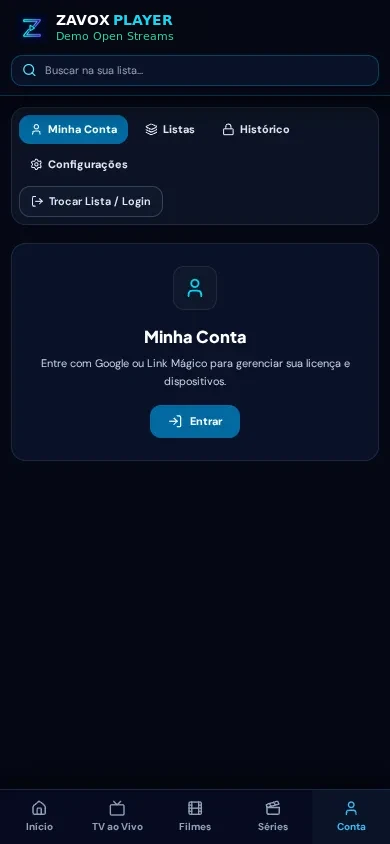
- Manage or unlink any of your 3 authorized devices remotely inside My Account.
Step-by-step instructions
- 01.
Open /app directly in Apple Safari (avoid in-app webviews)
If you tapped a link inside WhatsApp, Telegram, or Instagram, tap the compass icon to open the page in real Apple Safari so persistent IndexedDB storage and Home Screen PWA installation work properly.
- 02.
Test Open Demo or sign in to unlock your 48h free trial
Tap Open Demo to verify video and audio immediately with zero personal data, or sign in with Google / email Magic Link to unlock 48 hours of personal playlist playback without a credit card.
- 03.
Select M3U Playlist, name your profile, and paste the clean URL
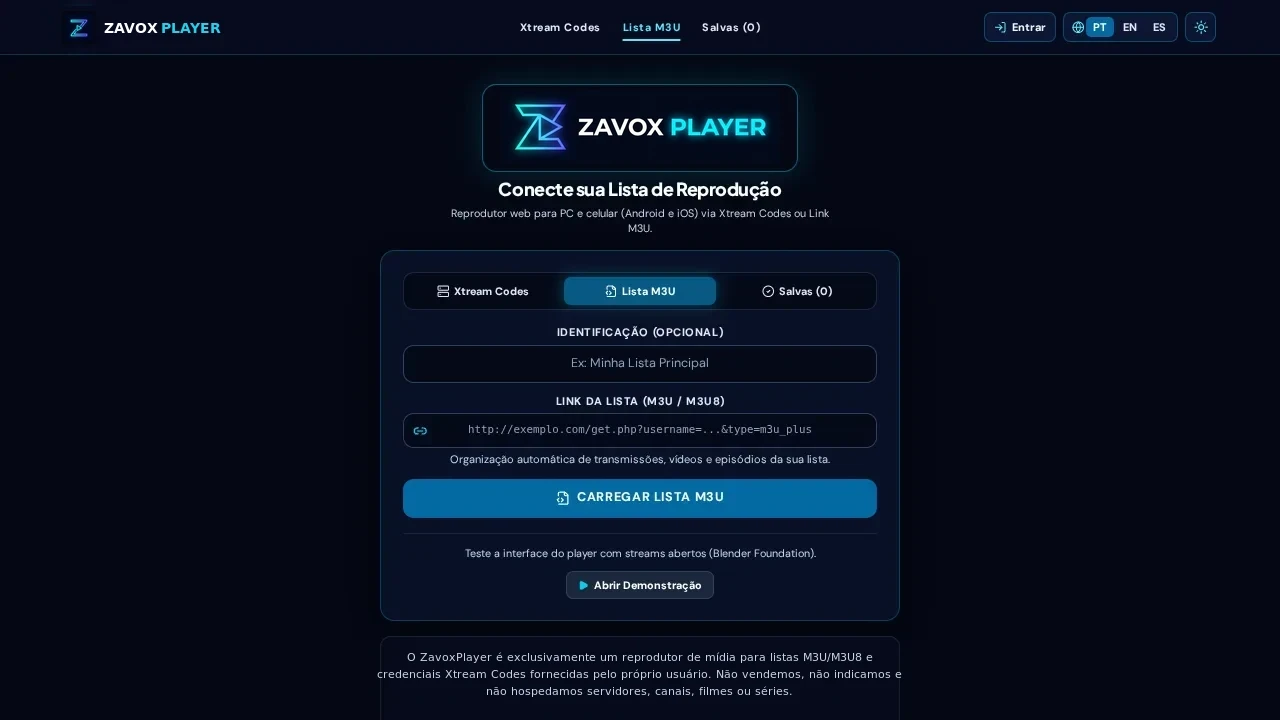
Switch to the M3U / M3U8 tab, give your list a clear name (for example, Home Playlist), and paste the complete http:// or https:// URL with no extra spaces.
- 04.
Browse organized folders and add the PWA icon to your Home Screen
Explore TV, Movies, and Series from the bottom mobile navigation bar, then tap Safari Share → Add to Home Screen for one-tap fullscreen launches.
Guide FAQ
Do I need to sideload IPAs or trust enterprise profiles on iOS?
No. ZavoxPlayer runs 100% through standard Apple Safari WebKit APIs and official iOS Add to Home Screen PWA support, posing zero certificate revocation risk.
Does ZavoxPlayer include channels, movies, or playlists on iPhone?
No. ZavoxPlayer is strictly a media player application. Aside from the built-in open test demo streams, users provide their own authorized playlists.
Why did my cached playlist vanish when using Private Browsing in Safari?
Safari Private Browsing wipes IndexedDB and local storage as soon as you close the tab. Always use a standard Safari tab or an installed Home Screen PWA icon so your saved playlists persist.
Can I use the same ZavoxPlayer license on my iPhone and Windows PC?
Yes. Every license is linked to your email account and supports up to 3 simultaneous devices across iOS, Android, Windows, macOS, and Linux.
Ready to try ZavoxPlayer?
Open the zero-signup demo or sign in with your email for a 48h free trial.