Desktop (PC & Mac) · 6 min read · Updated on 2026-11-17
How to open an M3U playlist on PC (Windows & Mac) in the browser
Running an M3U or M3U8 playlist inside your desktop browser removes extra installers and manual codec packs. Here is how to load playlists in ZavoxPlayer on Windows, macOS, or Linux and get smooth playback.
Why modern desktop browsers beat clunky legacy M3U desktop installers
On Windows 10/11, macOS, and Linux, users looking for an M3U player often run into two extremes: generic local media players that dump 25,000 channels into a single unsearchable flat list without cover art, or shady third-party .exe installers bundled with adware and outdated Electron wrappers.
Modern desktop browsers — Google Chrome, Microsoft Edge, Mozilla Firefox, Brave, and macOS Safari — ship with Media Source Extensions (MSE), hardware GPU video decoding, Web Workers, and multi-hundred-megabyte IndexedDB storage. ZavoxPlayer harnesses those native web standards to deliver a responsive multi-folder media workspace right inside a browser tab or standalone desktop PWA window.
When you import a large M3U or M3U8 playlist on PC, ZavoxPlayer delegates text parsing to a dedicated Web Worker. That architecture separates TV, Movies (VOD), and Series episodes in the background while keeping scrolling, category switching, and 250ms debounced search completely fluid.
- Runs natively on Windows 10/11, macOS (Apple Silicon & Intel), Ubuntu/Fedora Linux, and ChromeOS.
- Zero third-party codec packs, .exe admin prompts, or background system services.
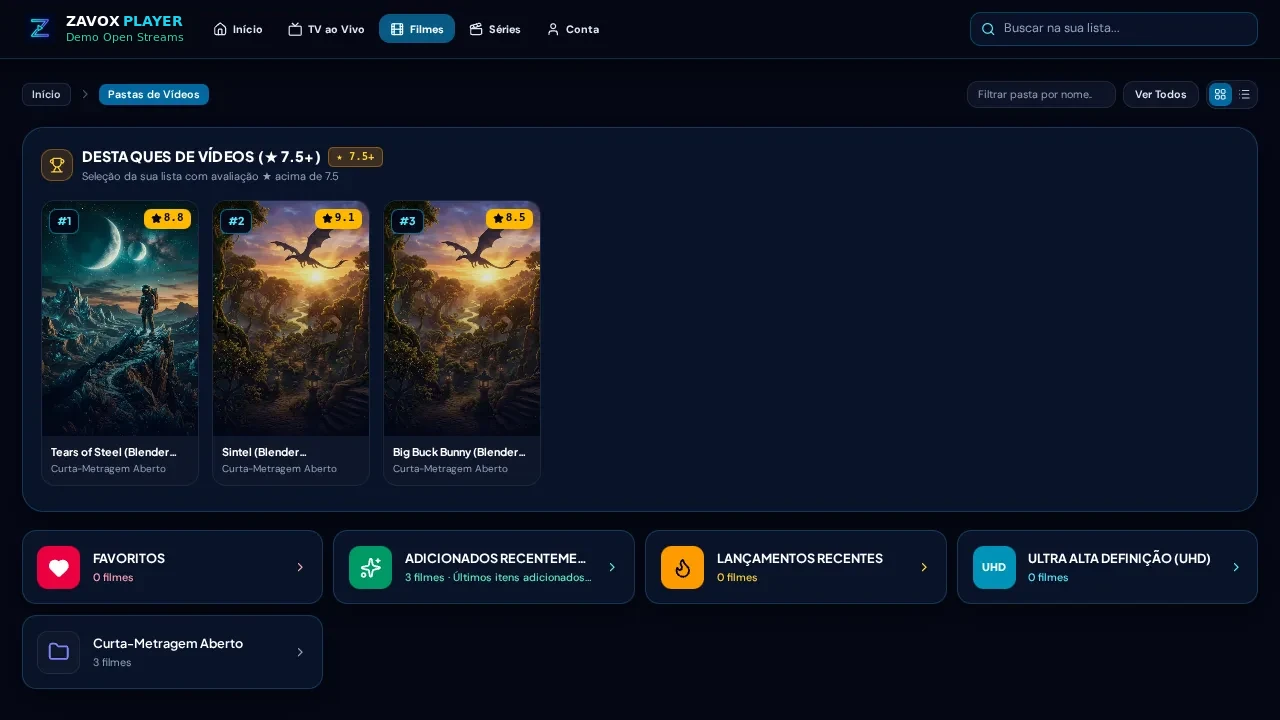
- Automatic category folder grouping with cover posters, favorites, resume-watching progress, and 4-digit PIN locks.
- Calibrated dark theme and WCAG AA high-contrast light theme for daytime office monitors.
Automatic playback engine selection (HLS, MPEG-TS, Native) and keyboard shortcuts
Streams inside an M3U playlist rarely use identical transport containers: live channels might arrive as segmented .m3u8 manifests or continuous raw .ts streams, while VOD items use .mp4 or .mkv containers. ZavoxPlayer features a unified player with automatic engine selection: native HLS on macOS Safari, HLS.js for .m3u8 streams on Chromium/Firefox, and mpegts.js (running inside a Web Worker with strict new URL() resolution) for live .ts streams.
If an upstream stream encounters a container mismatch or codec hiccup, the player automatically cascades to the next compatible engine without forcing you to guess obscure jargon. For power users diagnosing a specific feed, manual engine overrides remain cleanly tucked under Settings › Advanced with honest technical labels: Automatic, HLS, MPEG-TS, and Native.
Desktop multitasking is also built in from day one. While watching on a laptop or dual-monitor setup, you get responsive PC keyboard shortcuts and native browser Picture-in-Picture (PiP) so a live broadcast or tutorial stays pinned above spreadsheets, IDEs, or browser tabs.
- Spacebar toggles Play / Pause instantly; Left and Right Arrow keys seek -10s / +10s on VOD.
- Up and Down Arrow keys adjust volume smoothly; M toggles Mute; F enters or exits Fullscreen.
- One-click Picture-in-Picture (PiP) floats the video frame above any desktop application.
Installing the desktop PWA window and managing local profiles safely
In Google Chrome or Microsoft Edge, click the Install ZavoxPlayer icon on the right side of the address bar to create a clean desktop and taskbar shortcut. Opening that shortcut launches ZavoxPlayer in its own frameless window without bookmark toolbars, behaving just like a native desktop app while keeping full browser sandboxing.
Every playlist URL and cached catalog entry remains stored locally inside your computer IndexedDB storage — never uploaded to cloud databases. If you switch between a desktop tower, a work laptop, and a smartphone, signing in with your email syncs your license status across up to 3 devices while keeping your private playlist URLs strictly local to each machine.
Step-by-step instructions
- 01.
Open /app in Chrome, Edge, Firefox, or macOS Safari
Navigate to /app on your computer. Click Open Demo first if you want to test keyboard shortcuts, Picture-in-Picture, and audio with open public test streams before creating an account.
- 02.
Sign in with Google or Magic Link for your 48-hour trial
Authenticate with your email (no credit card required) to unlock 48 hours of full personal playlist access across up to 3 devices.
- 03.
Choose the M3U Playlist tab and import your URL
Assign a recognizable profile name, paste your complete http:// or https:// M3U or M3U8 link, and let the Web Worker index categories into local IndexedDB.
- 04.
Filter folders, search instantly, and pin Picture-in-Picture
Use the top navigation bar (Home, TV, Movies, Series, Search, Account), mark favorites from the card menu, or install the standalone desktop PWA from your browser address bar.
Guide FAQ
Does ZavoxPlayer work on macOS Apple Silicon (M1/M2/M3) and Linux?
Yes. Any up-to-date Chromium browser (Chrome, Edge, Brave), Firefox, or Safari on Windows, macOS, Linux, or ChromeOS runs ZavoxPlayer at native speed.
Are my M3U links uploaded to ZavoxPlayer servers when I save a profile?
No. Saved playlist URLs, parsed items, watch history, and PIN settings stay strictly inside your local browser IndexedDB storage.
Can I store multiple M3U playlists on the same PC?
Yes. You can save multiple named profiles locally and switch between them in one click under Account → Playlists without retyping long URLs.
Why did ZavoxPlayer remove labels like "EXO" or "VLC" from engine settings?
ExoPlayer (Android native) and libVLC (C++ desktop library) do not exist inside web browsers. ZavoxPlayer uses transparent, accurate names (Automatic, HLS, MPEG-TS, Native) under Settings › Advanced.
Ready to try ZavoxPlayer?
Open the zero-signup demo or sign in with your email for a 48h free trial.